
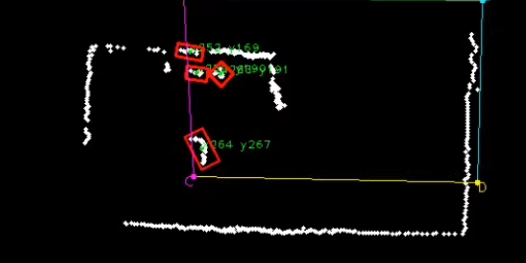
PoE LiDAR touch systems are widely deployed in interactive projection tables, museum exhibits, retail installations, and smart dining environments. In real-world operations, most failures fall into a few predictable categories:
- Device offline / not reachable
- Projection visible but no touch response
- Touch offset or rotated mapping
- High latency or lag
- Severe false triggers
- Local “dead zones”
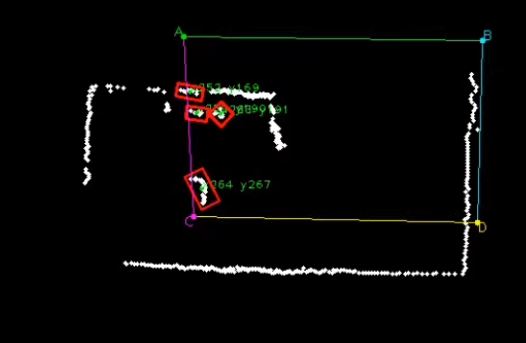
1. No Touch Response (Projection Works Normally)
Typical Causes
- PoE power or network failure
- Middleware/service not running
- Touch service not connected to application
Step-by-Step Diagnosis
1. Check PoE Power & Indicators
- Verify switch port provides correct PoE standard (802.3af / 802.3at).
- Confirm port LED status: steady or normal blinking.
- Inspect device status LED for fault signals (red or rapid flashing).
If the device receives insufficient power, it may boot partially but fail to output touch data.
2. Verify Network Connectivity
From a PC in the same subnet:
- Ping the LiDAR device IP.
- If unreachable, inspect:
- IP configuration
- VLAN settings
- Cable integrity
- Connector termination
3. Check Middleware & Touch Services
- Ensure LiDAR driver/service is running without errors.
- Confirm correct protocol configuration (TCP / UDP / HID / TUIO).
- Verify firewall rules are not blocking required ports.
In many cases, the projection works because the content engine runs independently, but the touch event bridge is disconnected.
2. Touch Works but Coordinates Are Offset or Rotated
Common Causes
- Calibration lost or corrupted
- LiDAR physically moved (height/angle changed)
- Projector geometry altered (keystone, scaling, resolution change)
Resolution Steps
1. Recalibrate Immediately
Perform full multi-point calibration (4 corners + center minimum).
Ensure:
- Surface is clear
- Touch points precisely match visual markers
- Final logical resolution matches projection output
2. Confirm Installation Stability
Even minor changes in:
- Mounting height
- Tilt angle
- Sensor rotation
Require full recalibration.
3. Check Projection Settings
If someone adjusted:
- Keystone correction
- Multi-screen blending
- Output resolution
Touch mapping will misalign. Always calibrate after projection geometry changes.
3. High Latency or Intermittent Response
Common Causes
- Network congestion
- CPU overload on host PC
- Excessive output frame rate
Diagnostic Process
Network Optimization
- Place LiDAR and server on same switch.
- Avoid Wi-Fi bridging.
- Isolate from high-bandwidth traffic (e.g., CCTV streaming).
System Performance Monitoring
Check:
- CPU usage
- GPU load
- Memory consumption
If system runs above 90% utilization, interaction delay becomes inevitable.
Adjust Output Parameters
- Reduce LiDAR frame rate (e.g., 120 FPS → 60 FPS).
- Lower rendering complexity (particles, physics, effects).
- Optimize interactive content logic.
In production environments, balance between responsiveness and system stability is critical.
4. Severe False Triggers (Ghost Touches)
Typical Causes
- Sensitivity threshold too high
- Reflective objects or liquids on surface
- Users’ sleeves or nearby movement triggering detection
Resolution Strategy
Optimize Physical Environment
- Remove cups, reflective plastics, metallic surfaces.
- Keep interaction area clean and uniform in texture.
Adjust Algorithm Thresholds
Inside LiDAR software:
- Increase minimum touch area threshold.
- Increase dwell time requirement (e.g., contact > X ms).
- Tighten surface proximity threshold.
Example logic:
Only register touch when object is within defined distance AND remains stable for specified milliseconds.
Configure Ignore Zones
Define masked areas:
- Table edges
- Wall corners
- Fixed devices
This significantly reduces edge noise.
5. Partial Dead Zones (Local Area Not Responding)
Causes
- Physical obstruction in LiDAR field of view
- Poor reflective angle
- Incomplete calibration sampling
Field Fixes
Check for Obstruction
Stand at sensor position and inspect:
- Light fixtures
- Decorative panels
- Monitor frames
- Structural beams
Even small physical occlusions create blind spots.
Adjust Mounting Angle
Slightly raise or tilt sensor to shift blind area outside active region.
For large surfaces, consider dual-sensor coverage.
Recalibrate with Extra Sampling Points
Add additional midpoints in problematic areas to refine mapping accuracy.
6. Device Completely Offline
Causes
- PoE disabled or underpowered
- IP conflict
- Switch security policies
Investigation Procedure
PoE Port Inspection
Verify:
- Port enabled
- Power budget sufficient
- No overload/short-circuit warnings
IP & Subnet Validation
- Confirm static vs DHCP mode.
- Temporarily direct-connect PC in same subnet.
- Check for duplicate IP conflicts (common in multi-device setups).
Switch Security Configuration
If managed switch:
- Confirm VLAN membership
- Review ACL rules
- Disable port security restrictions if needed
7. Preventive Maintenance Checklist
Daily / Before Events
- Visual inspection of device LEDs
- Quick full-area touch test
- Confirm no coordinate drift
Monthly
- Backup configuration and calibration data
- Verify firmware and middleware versions
- Inspect mounting stability
- Review network topology
Preventive care significantly reduces downtime in commercial environments.
Frequently Asked Questions (FAQ)
Q1: How often should calibration be performed?
Only when projection geometry or LiDAR position changes. Otherwise, calibration remains stable.
Q2: Can network congestion cause ghost touches?
Not directly. Congestion causes delay or dropped packets, not false triggers. Ghost touches are usually sensitivity-related.
Q3: What is the ideal mounting height?
Depends on sensor model and table size. Follow manufacturer’s recommended coverage specifications.
Q4: How many touch points can PoE LiDAR handle?
Professional-grade systems support dozens to hundreds of simultaneous touch points.
Q5: Is Wi-Fi suitable for LiDAR communication?
Not recommended for commercial installations. Wired PoE ensures stability and low latency.
Q6: How can we prevent IP conflicts in multi-table setups?
Use structured IP planning, DHCP reservation, or centralized device management.
About CPJROBOT
CPJROBOT is a professional manufacturer specializing in:
- PoE LiDAR touch interaction systems
- Interactive projection solutions
- Commercial greeting robots
- Smart automation platforms
We provide:
- OEM / ODM customization
- SDK and API support
- Project integration consulting
- Global distributor partnership programs
Our systems are engineered for high reliability in restaurants, museums, retail, healthcare, and exhibition environments.
You May Also Be Interested In: