
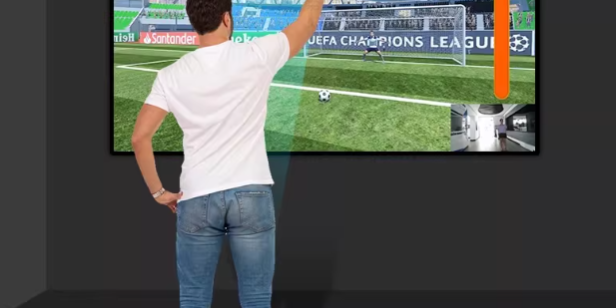
If you’re building a virtual sports experience (run, jump, kick, score) and want multi-player interaction without wearables, LiDAR tracking is one of the most practical sensing options. The “real work” is not the graphics—it’s the data path:
LiDAR (SDK/middleware) → network packets (UDP/TCP/TUIO) → Unity C# receiver → coordinate mapping → gameplay triggers (movement, collisions, scoring, UI)
This guide shows an implementation-oriented workflow you can follow in a real project, including data formats, Unity-side networking, coordinate calibration, smoothing, and common stability tricks used in commercial installations.
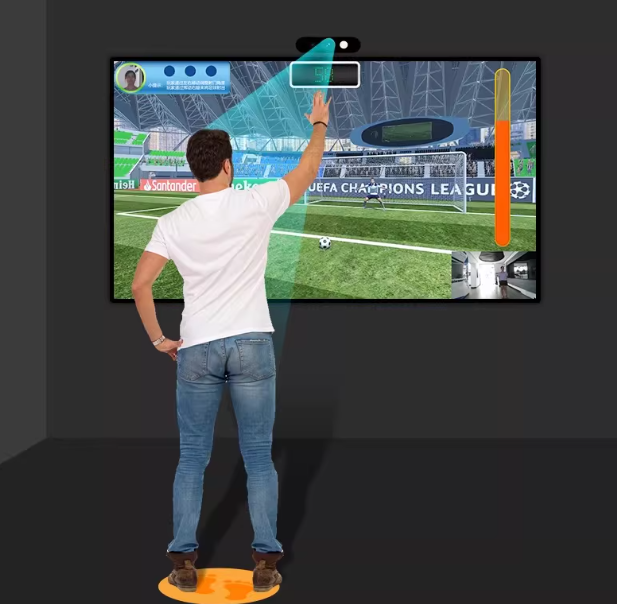
System Architecture Options
Option A: LiDAR SDK → Middleware → Unity (Recommended)
Best for: multi-player, multi-sensor, commercial stability
- LiDAR side: vendor SDK outputs point cloud / tracked targets
- Middleware service (PC or edge box): filters noise, assigns IDs, merges sensors, exports “player touchpoints”
- Unity: only consumes a clean list of players (ID + position + speed + timestamp)
Why this is recommended: Unity stays focused on gameplay. You avoid heavy data processing on the game loop, and you get a single place to manage calibration and sensor fusion.
Option B: LiDAR outputs TUIO / OSC / Custom UDP → Unity (Fast deployment)
Best for: quick prototypes, single sensor, simpler interactions
Many interactive systems export:
- TUIO (common for multi-touch style tracking)
- OSC (common in interactive installations)
- Custom UDP/TCP JSON/text (simple and effective)
Unity can receive any of these. TUIO is especially convenient when you want “virtual touchpoints”.
Step 1: Define Coordinate Systems and Data Protocol
Coordinate Convention (Make It Unambiguous)
Pick one real-world reference and stick with it:
Real venue (meters)
- Origin at field corner (e.g., bottom-left) or center
- Axes: X = width, Y = length, Z = height (optional)
Unity world
- Typical: X-Z plane = ground, Y = height
- Decide: does Unity’s (0,0,0) match field center or a corner?
The goal is a deterministic mapping:
- Scale (meters → Unity units)
- Offset (origin shift)
- Rotation (if the sensor coordinate frame is rotated)
Simple UDP Payload Formats (Choose One)
1) CSV text (easy to debug)
- One packet per frame:
id,x,z;id,x,z;id,x,z - Example:
1,1.20,0.50;2,2.30,0.40
2) JSON (clear, slightly heavier)
{
  "t": 1700000000.123,
  "players":[
    {"id":1,"x":1.2,"z":0.5,"vx":0.1,"vz":0.0},
    {"id":2,"x":2.3,"z":0.4}
  ]
}
3) TUIO (great for “touchpoints”)
- You treat each player like a moving cursor / touch point.
- Unity uses an existing TUIO client or a small parser.
Practical recommendation: start with CSV UDP for speed, then upgrade to JSON/TUIO when needed.
Step 2: Receive LiDAR Data in Unity (UDP Example)
Unity networking must be handled carefully:
- Receive data off the main thread
- Push parsed results into a thread-safe buffer
- Apply positions in
Update()on the main thread
A Production-Friendly Pattern (UDP + Concurrent Queue)
Below is a minimal, workable pattern (you can expand it for JSON/TUIO later).
using System;
using System.Collections.Concurrent;
using System.Collections.Generic;
using System.Globalization;
using System.Net;
using System.Net.Sockets;
using System.Text;
using UnityEngine;

public class LidarUdpReceiver : MonoBehaviour
{
    [Header("UDP Settings")]
    public int listenPort = 7000;

    [Header("Field Mapping (meters -> Unity units)")]
    public float fieldWidthMeters = 6f;    // real field width
    public float fieldLengthMeters = 4f;   // real field length
    public float unityWidth = 6f;          // Unity field width in units
    public float unityLength = 4f;         // Unity field length in units
    public Vector3 unityOrigin = Vector3.zero; // where to place field origin in Unity (corner or center)

    private UdpClient _udp;
    private IPEndPoint _ep;
    private readonly ConcurrentQueue<string> _packets = new();
    private readonly Dictionary<int, Vector3> _latestPositions = new();

    private bool _running;

    void Start()
    {
        _udp = new UdpClient(listenPort);
        _ep = new IPEndPoint(IPAddress.Any, listenPort);
        _running = true;

        // Start async receive loop
        _udp.BeginReceive(OnReceive, null);
    }

    void OnDestroy()
    {
        _running = false;
        _udp?.Close();
    }

    private void OnReceive(IAsyncResult ar)
    {
        if (!_running) return;

        try
        {
            byte[] data = _udp.EndReceive(ar, ref _ep);
            string msg = Encoding.UTF8.GetString(data);
            _packets.Enqueue(msg);
        }
        catch { /* log if needed */ }
        finally
        {
            if (_running) _udp.BeginReceive(OnReceive, null);
        }
    }

    void Update()
    {
        // Drain packets
        while (_packets.TryDequeue(out var msg))
        {
            ParseAndStore(msg);
        }

        // Now _latestPositions contains newest positions per player ID
        // Other scripts can read it, or you can fire events here.
    }

    private void ParseAndStore(string msg)
    {
        // Expected: "1,1.20,0.50;2,2.30,0.40"
        var players = msg.Split(';', StringSplitOptions.RemoveEmptyEntries);

        foreach (var p in players)
        {
            var parts = p.Split(',', StringSplitOptions.RemoveEmptyEntries);
            if (parts.Length < 3) continue;

            if (!int.TryParse(parts[0], out int id)) continue;

            // Use invariant culture to parse decimals reliably
            if (!float.TryParse(parts[1], NumberStyles.Float, CultureInfo.InvariantCulture, out float xReal)) continue;
            if (!float.TryParse(parts[2], NumberStyles.Float, CultureInfo.InvariantCulture, out float zReal)) continue;

            Vector3 unityPos = MapToUnity(xReal, zReal);
            _latestPositions[id] = unityPos;
        }
    }

    private Vector3 MapToUnity(float xReal, float zReal)
    {
        // xReal in [0..fieldWidthMeters], zReal in [0..fieldLengthMeters]
        float xU = (xReal / fieldWidthMeters) * unityWidth;
        float zU = (zReal / fieldLengthMeters) * unityLength;

        return unityOrigin + new Vector3(xU, 0f, zU);
    }

    // Optional getter
    public bool TryGetPlayerPos(int id, out Vector3 pos) => _latestPositions.TryGetValue(id, out pos);
}
What this gives you immediately
- A working UDP listener
- A consistent coordinate mapping method
- A latest-position dictionary by player ID
Next, we make it feel smooth and “game-like”.
Step 3: Player Objects, Appearance/Disappear, and Smoothing
Maintain a Player Registry (ID → GameObject)
Create a prefab (e.g., “Footprint”, “Avatar”, “ColliderDot”) and spawn one per ID.
- If a new ID appears → instantiate prefab
- If an ID disappears for N milliseconds → hide or destroy
- Use interpolation to avoid jitter
Smooth Motion to Prevent “Shaking”
LiDAR tracking can be slightly noisy. Smooth it before driving gameplay:
Vector3.Lerpfor simple smoothingSmoothDampfor better feel- Optional: moving average / lightweight Kalman in middleware
Unity-side smoothing example idea
- Keep
targetPosfrom LiDAR - Move actual transform to
targetPosviaSmoothDamp
Step 4: Convert Positions into Sports Interactions
Once each player has a moving GameObject in the correct place, interaction becomes “normal Unity gameplay”.
A) Zone Triggers (stepping on tiles, scoring areas)
- Place
BoxCollider(Is Trigger) on zones: goal, checkpoint, power-up - Player object has a
Collideror usesPhysics.OverlapSphere - When overlap happens → fire scoring / effects
B) “Kicking” a Virtual Ball (physics-driven)
- Ball uses
Rigidbody - When player’s footprint enters ball collider → apply force based on:
- player movement direction
- player speed (computed via position delta)
C) Speed-Based Mechanics (sprint, dash, power shot)
Compute speed using timestamped differences:
v = (posNow - posPrev) / dt
Then trigger:- sprint mode when speed > threshold
- “power kick” when speed spikes
D) Jump / Dodge (with or without height)
- If LiDAR provides height: detect jump via Y changes
- If not: approximate jump events via speed spikes + pattern matching
(For most floor-based sports projection, planar movement is enough.)
Step 5: Gameplay Templates That Work Well
Sprint Track / Relay Race
- Score by distance over time
- Ranking UI updates every second
- Add “boost zones” to increase repeat plays
Soccer / Dodgeball
- Ball physics + goal zones
- Team mode based on player IDs
- Add cooldowns to avoid repeated collision spam
Wall + Floor Linked Targets
- Wall targets with timed spawns
- Floor movement defines reach / multiplier zones
- Great for spectator value and high engagement
Performance and Stability Tips (Commercial Reality)
Match Data Rate to Game Loop
LiDAR may output 20–50 Hz, Unity runs ~60 FPS.
Do one of these:
- Process the latest packet only (drop older ones)
- Interpolate between samples for smooth motion
Noise Control Rules That Reduce False Triggers
- Minimum “presence time” before spawning a player
- Minimum movement distance to confirm a real player
- Timeout-based removal (e.g., 500–1500 ms without updates)
Don’t Do Heavy Parsing in Update()
Keep Update() light:
- networking + parsing in background
- main thread only updates transforms and game logic
Use Object Pooling for Footprints and Effects
Avoid frequent Instantiate/Destroy during peak hours.
Faster Alternative: “LiDAR Interaction Software → Unity”
Some commercial LiDAR interaction stacks output:
- TUIO touchpoints
- virtual mouse/touch events
If you use that approach:
- Unity doesn’t manage IDs deeply
- You treat touches as “players” or “feet”
- Great for fast rollout when you don’t want low-level networking and fusion
FAQ
1) UDP or TCP—what’s better for LiDAR tracking?
UDP is common for real-time tracking because it’s fast and tolerant of occasional packet loss. TCP can add latency and stutter if the network has hiccups.
2) TUIO vs custom UDP?
TUIO is great when you want touch-like input and quick compatibility.
Custom UDP is best when you need richer fields (speed, confidence, zones, timestamps).
3) How do I stop player ID switching?
Use middleware tracking rules, multi-view sensors if needed, and Unity-side smoothing + time-based “stickiness” so IDs don’t swap on brief overlaps.
4) What if I have multiple LiDAR sensors?
Do sensor fusion in middleware (recommended), then send Unity a unified player list in one coordinate system.
5) How do I calibrate mapping from real floor to Unity?
Use 2–4 reference points (corners/markers), compute scale + rotation + offset, and validate by stepping on known positions.
6) Can this work for bright venues like malls?
Yes—LiDAR tracking isn’t dependent on visible lighting the way camera systems are. Your display choice (projector vs LED) matters more for visibility.
7) What’s the simplest MVP to build?
Single LiDAR + CSV UDP packets (ID, X, Z) + footprints + trigger zones. You can add ball physics and ranking next.
If you’re building a LiDAR interactive projection or virtual sports project and want a reliable Unity integration path, CPJROBOT can support your deployment plan.