
Practical Solutions for Common On-Site Problems
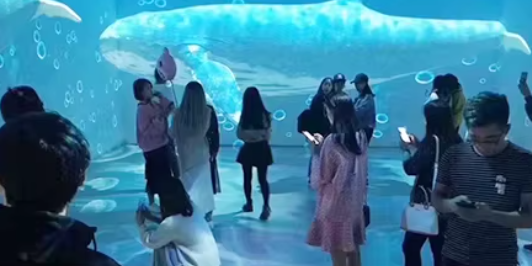
Interactive wall projection systems—where people walk, wave, or touch in front of a wall and trigger real-time visual effects—are widely used in exhibitions, shopping malls, museums, brand events, and immersive spaces.
In real-world installations, most failures fall into three core areas:
- Projection / display issues
- Sensor issues (camera, infrared, radar, LiDAR)
- Computer and software configuration issues
Below is a hands-on troubleshooting checklist based on real installation and operation experience.

1. Display & Image Problems
(No image, blurry image, color shift, flickering)
1.1 No Image / “No Signal” Message
Check first
- Confirm the projector or LED display is powered on and status indicators are normal
- Check for lamp life warnings or protection mode
- Inspect signal cables (HDMI / DP / network video): loose connections, bent pins, or damaged cables
- On the computer, confirm Extend or Duplicate Display is enabled and the correct output port is selected
Recommended actions
- Test with a shorter, higher-quality cable
- Switch signal sources (another PC or media player) to identify whether the issue is the cable, source, or display device
1.2 Blurry Image or Unclear Edges
Check first
- Adjust the projector focus ring carefully
- Ensure the projector is roughly perpendicular to the wall
- Avoid excessive keystone correction, which reduces image sharpness
- Check for dust, grease, or moisture on the lens or wall surface
Recommended actions
- Clean the lens and projection surface
- Allow the projector to acclimate to room temperature before fine focusing to avoid condensation-related blur
1.3 Color Shift, Flickering, or Horizontal Lines
Check first
- Replace the signal cable to rule out poor contact or signal attenuation
- Check graphics card color settings and refresh rate
- Verify projector or LED display color mode settings
Recommended actions
- Plug the projector and signal source into the same power strip to avoid grounding interference
- Persistent flicker or lines often indicate internal power or control board issues—professional repair may be required
1.4 Intermittent Black Screen or Auto Shutdown
Common causes
- Overheating protection
- Unstable power supply
Recommended actions
- Clean air inlets, outlets, and filters on projectors and LED power cabinets
- Ensure proper ventilation
- Avoid sharing power circuits with high-power devices
2. Interaction Issues
(No response, low sensitivity, drifting, dead zones)
2.1 No Interaction, Only Visual Content
Check first
- Verify sensor status indicators (camera / radar / LiDAR power and network lights)
- Open the sensor diagnostic or demo software to confirm real-time data is visible
- Ensure the interactive software is using the correct input device (wrong camera, wrong COM port, wrong IP)
Recommended actions
- Replug USB or Ethernet cables and test different ports
- Restart the interactive software or reboot the computer
- Reload or reinstall sensor drivers if needed
2.2 Interaction Works but Is Laggy or Drifting
Common causes
- Incorrect calibration
- Resolution mismatch
- Environmental interference
Key checks
- Redo area calibration to realign sensor coordinates with the projected image
- Confirm software resolution matches actual output resolution (e.g., software set to 1920×1080 while output is 3840×2160)
- Strong ambient light, reflections, glass surfaces, or direct spotlights may interfere—especially for camera-based systems
Recommended actions
- Adjust sensor angle and position to face the interaction area directly
- Reduce reflective surfaces or apply matte materials
2.3 Some Areas Respond, Others Are Dead Zones
Check first
- Review the calibration interface for missing edge coverage
- For LiDAR or radar systems, check for physical obstructions (decorations, frames, signage)
Recommended actions
- Slightly reposition the sensor forward, backward, or sideways to improve coverage
- For multi-sensor setups, verify correct stitching and fusion settings to avoid gaps or excessive overlap
3. Software & System Stability Issues
3.1 Interactive Software Lag or Crashes
Troubleshooting direction
- Check PC hardware: CPU, GPU, RAM
- Close unnecessary background programs
- Verify sufficient disk space and system health
Recommended actions
- Run the interactive system on a dedicated machine
- Update graphics drivers and interactive software
- If problems persist, reinstall the operating system for a clean environment
3.2 Interaction Offset (Touch Does Not Match Visual Effect)
Resolution steps
- Confirm display resolution and aspect ratio have not changed
- Recalibrate after any projector movement, replacement, or image repositioning
- In multi-screen setups, verify each screen’s resolution and coordinate mapping
4. Preventive Maintenance Best Practices
Regular Cleaning
- Clean projectors, sensors, and PCs regularly to prevent overheating and optical contamination
Stable Power Supply
- Use a dedicated power circuit or power strip for interactive systems
- Avoid sharing with high-power lighting or audio equipment
Backup & Emergency Preparation
- Back up interactive software, configuration files, and calibration data
- Prepare an emergency USB drive with:
- Drivers
- Software installers
- Test content
Proper Usage Habits
- Avoid frequent power cycling
- Do not run brightness or effects at maximum levels continuously
- Follow manufacturer usage guidelines to extend equipment lifespan
Why Professional Hardware Matters
Many interaction problems stem not from software, but from unstable sensors, poor installation design, or unsuitable hardware selection.
High-quality LiDAR-based interactive systems, especially PoE LiDAR, significantly reduce:
- Calibration drift
- Ambient light interference
- Multi-user instability
Why Choose CPJ ROBOT?
CPJ ROBOT is a professional manufacturer specializing in interactive LiDAR systems and reception robots, offering:
- LiDAR & PoE LiDAR interactive sensors
- Interactive wall and projection solutions
- Integration with welcoming and service robots
- OEM / ODM customization
- Stable, field-tested hardware for commercial deployment
- Global agent and distributor recruitment
With proven experience in interactive projection, LiDAR sensing, and system integration, CPJ ROBOT delivers solutions designed for long-term reliability and ease of maintenance.
Frequently Asked Questions (FAQ)
Q1: What is the most common cause of interactive wall failure on-site?
Incorrect calibration or resolution mismatch between the sensor and display system.
Q2: Are LiDAR-based systems more stable than camera-based systems?
Yes. LiDAR systems are far less affected by ambient light and reflections, making them more reliable in real environments.
Q3: How often should calibration be performed?
Calibration should be redone whenever the projector, sensor, or image position changes.
Q4: Can PoE LiDAR reduce wiring-related issues?
Yes. PoE LiDAR uses a single Ethernet cable for power and data, reducing connection failures and simplifying installation.
Q5: Is interactive wall projection suitable for long-term operation?
Yes, with proper hardware selection, ventilation, and maintenance, systems can run reliably for extended periods.
Planning an interactive wall projection, immersive exhibition, or large-scale interactive installation?
CPJ ROBOT is a trusted interactive LiDAR and reception robot manufacturer, providing:
- LiDAR / PoE LiDAR interactive solutions
- Interactive projection systems
- OEM / ODM customization
- Global distributor and agent opportunities
Contact CPJ ROBOT today to build a more stable, professional interactive system—or to join our global partner network.
- What Is LiDAR Interactive Projection? A Complete Guide to Its Applications in Modern Exhibition Halls
- What Is LiDAR Interactive Projection? A Complete Guide to Its Applications in Modern Exhibition Halls
- Advantages of Interactive Projection in Multimedia Digital Exhibition Halls
- Three Common Types of Interactive Wall Projection in Modern Exhibition Halls
- The Future of Dining — Inside the Interactive Projection Restaurant Revolution