
LiDAR-based interactive floor projection systems offer unparalleled scale and precision for immersive environments. However, live AV environments are complex. Changes in lighting, physical bumps, or software misconfigurations can cause the system to behave unexpectedly.
Whether you are an AV integrator on a tight deadline or an event technician dealing with live-show gremlins, this Symptom-to-Solution Troubleshooting Guide will help you diagnose and fix common LiDAR interactive floor issues in minutes.
1. Total Failure: No Response or Touch Detection
Symptom: People are walking on the projected floor, but the interactive software shows absolutely no reaction.
- Possible Causes:
- The LiDAR sensor has lost power or data connection.
- The interactive software has disconnected from the hardware.
- The active “interaction zone” was drawn incorrectly in the software.
- How to Fix It:
- Check Hardware: Look at the LiDAR unit. Is the motor spinning? Is the status LED on? If not, check the 12V power adapter or PoE switch. Swap the cable or port if necessary.
- Verify Data Transmission: Open your LiDAR configuration software and look at the Raw Point Cloud. If dots appear when someone walks in, the hardware is fine. The issue is your interactive software.
- Redraw the Zone: Ensure the interactive software is set to “Floor Mode.” Delete the old interaction polygon and redraw it to perfectly cover the projected area.
2. Ghost Touches: Erratic Triggers & “Jumping” Effects
Symptom: Even when the floor is completely empty, digital effects are triggering randomly across the screen.
- Possible Causes:
- Static Interference: The LiDAR is scanning highly reflective surfaces (glass walls, metal baseboards, shiny shoes) or intense light spots.
- Bad Angling: The sensor is mounted too low and is scanning the actual floor surface or wall bumps.
- Hardware Noise: The sensor is overheating or failing.
- How to Fix It:
- The Wave Test: Look at the raw point cloud. Wave your hand over the suspected physical interference area. If the ghost touch disappears when blocked by your hand, it is physical interference.
- Adjust & Mask: Slightly tilt or raise the LiDAR to avoid the floor/wall boundary. Use the “Masking” or “Exclusion Zone” tools in your software to black out the problem areas.
- Filter Noise: Run the “Background Recognition” or “Static Noise Filtering” tool in your software to let the system ignore permanent fixtures.
- Cool Down: If the raw data is entirely chaotic static, power down the LiDAR, let it cool, and test again.
3. Position Offset: Inaccurate Tracking
Symptom: You step on Point A, but the visual effect triggers a few feet away at Point B.
- Possible Causes:
- The projector was moved, zoomed, or keystone-corrected after the initial LiDAR calibration.
- The LiDAR sensor was physically bumped or slightly rotated.
- The initial 4-point calibration was rushed and inaccurate.
- How to Fix It:
- Lock the Visuals First: Never calibrate the LiDAR until the projector’s position, zoom, and keystone are 100% locked in.
- Check Mounts: Ensure the LiDAR bracket screws are tight and the sensor hasn’t shifted.
- Recalibrate: Re-run the 4-point (or multi-point) calibration. Have an assistant stand exactly on the projected corners while you align the digital vertices in the software.
4. Dead Zones: Specific Areas Won’t Respond
Symptom: The interactive floor works perfectly, except for one specific patch where footsteps register nothing.
- Possible Causes:
- The dead zone was accidentally excluded in the software’s interaction mapping.
- Physical blind spots (e.g., a pillar or furniture blocking the laser’s line of sight).
- Uneven flooring (steps, ramps, thick mats) causing feet to fall into the LiDAR’s “shadow.”
- How to Fix It:
- Check Mapping: Verify that the polygon interaction area in your software fully encompasses the dead zone.
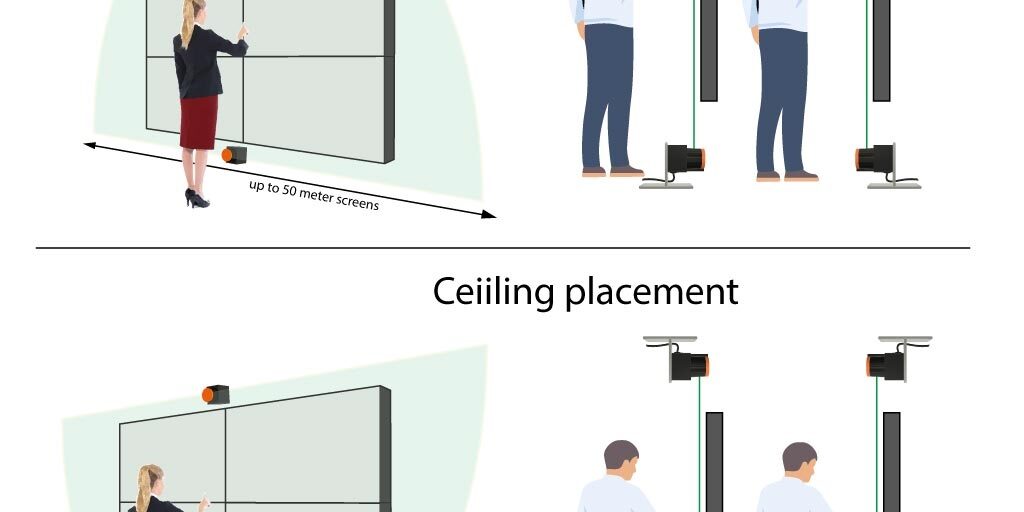
- Line of Sight: Walk into the dead zone while looking at the raw point cloud. If no dots appear, the LiDAR cannot see you. You must relocate the LiDAR higher up or add a second LiDAR sensor to cover the shadow.
5. High Latency: System Lag and Low Frame Rates
Symptom: The interactive effects trail far behind the user’s footsteps, making the experience feel sluggish.
- Possible Causes:
- The Control PC’s CPU/RAM is maxed out by background apps.
- The LiDAR sample rate is set too high, bottlenecking the network bandwidth.
- Software tracking algorithms are set too conservatively.
- How to Fix It:
- Free Up Resources: Check Windows Task Manager. Close unnecessary background apps. If the CPU is pinned at 100%, you need a more powerful host PC.
- Optimize Data: Lower the LiDAR’s scanning frequency/sample rate in the software.
- Tweak Tracking Parameters: Reduce the “Smoothing/Filtering Window” (which causes artificial delay) and lower the “Minimum Trigger Area” threshold so small footsteps trigger effects instantly.
6. Random Disconnections After Long Use
Symptom: The system runs great for a few hours, then suddenly stops working and requires a reboot or cable replug.
- Possible Causes:
- Thermal throttling (Host PC or LiDAR overheating).
- Unstable power supply or cheap network switches.
- IP conflicts on the local network (for Ethernet-based LiDARs).
- How to Fix It:
- Improve Ventilation: Ensure the LiDAR and the PC have proper airflow.
- Network Stability: For PoE/Ethernet LiDARs, assign a strict Static IP address to prevent conflicts. Use a high-quality Gigabit switch.
- Power Cycling: If the venue doesn’t require 24/7 operation, implement a daily automated shutdown to clear hardware caches and prolong sensor lifespan.
Pro Tips for Daily Maintenance
- Monthly Checks: Open the point-cloud software once a month to check for new physical interference (e.g., a venue added a new shiny trash can).
- The Golden Rule: If you touch the projector, you must recalibrate the LiDAR.
- Easy Access: Create desktop shortcuts for the calibration software so on-site staff can easily reboot or recalibrate the system without calling remote support.
Frequently Asked Questions (FAQ)
Q1: Can I use multiple LiDAR sensors for a massive projection floor?
Yes. For large-scale projects, multiple LiDARs can be installed. Software like TouchDesigner or dedicated AV interactive engines can stitch multiple point clouds together. Ensure overlapping zones are properly blended to avoid double-triggering.
Q2: Why does the system work great at night but fail during the day?
While LiDAR uses invisible lasers and is highly resistant to ambient light, direct, intense sunlight hitting the sensor lens can temporarily blind it. Ensure the sensor is shielded from direct sun rays.
Q3: Is PoE (Power over Ethernet) better than USB for LiDAR?
Absolutely. PoE LiDARs allow for massive cable runs (up to 100 meters) without signal degradation, whereas USB is limited to a few meters without active repeaters. PoE is the standard for professional AV integration.
Need Reliable Hardware for Your Next Interactive Project?
When it comes to interactive floors, your software is only as good as the hardware feeding it data. Cheap sensors lead to jitter, lag, and dead zones.
CPJROBOT is a leading manufacturer and solution provider of high-performance PoE LiDAR interactive projection solutions. We specialize in providing AV integrators and event professionals with robust, easily deployable, and highly accurate LiDAR hardware designed specifically for seamless interactivity.
- Zero Dropouts: Industrial-grade PoE technology for stable 24/7 operation.
- High Precision: Millimeter-level tracking with ultra-low latency.
- End-to-End Support: From single-projector setups to massive multi-LiDAR blended floors, we provide the hardware and technical support you need.
Stop troubleshooting and start creating.
[Contact CPJROBOT today] to upgrade your interactive AV hardware and get custom integration support for your next project.
You May Also Be Interested In: