
Interactive floor projections have transformed retail spaces, museums, events, and entertainment venues by turning ordinary floors into highly engaging, touch-sensitive digital surfaces. While camera-based systems were once the standard, LiDAR (Light Detection and Ranging) technology has become the preferred choice due to its massive coverage area, immunity to ambient light changes, and pinpoint accuracy.
If you are setting up a typical “Single LiDAR + Projector + Host PC” system, getting the hardware installation right is critical for a smooth software calibration later. Here is a comprehensive, universal guide to installing your LiDAR interactive floor hardware.
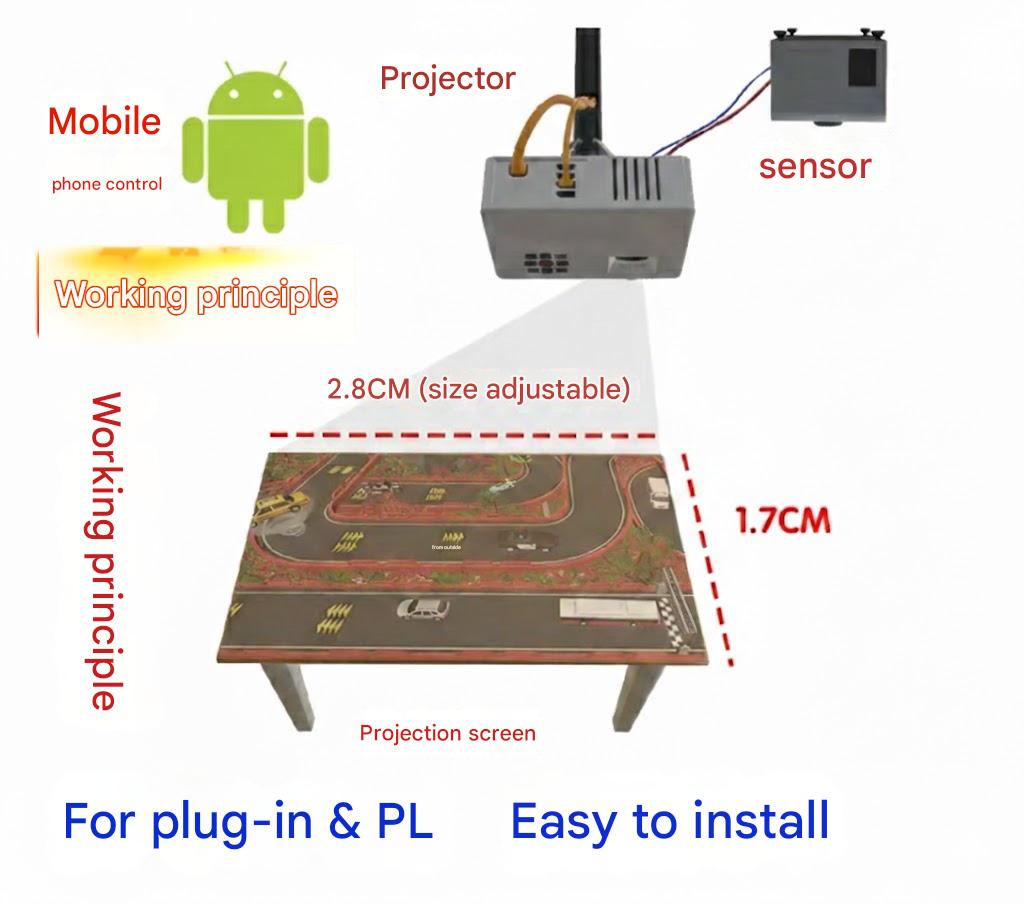
Step 1: Hardware Checklist & Site Preparation
Before mounting any equipment, ensure you have the right components and that your installation environment is suitable for optical sensors.
The Equipment Checklist
- LiDAR Sensor: Popular models include RPLIDAR, PAVO, or YDlidar.
- Projector: A Short-Throw or Ultra-Short-Throw (UST) projector is highly recommended to prevent shadows when users walk onto the projection.
- Control Host (PC): A dedicated computer with HDMI/DisplayPort outputs, USB ports, and a Gigabit Ethernet port (to run the interactive software).
- Mounting & Wiring: Ceiling brackets, expansion anchors/screws, HDMI cables, USB/Ethernet cables (for the LiDAR), and appropriate power supplies.
Site Selection Tips
- Measure First: Determine the exact size of the interactive floor area. Use this dimension to calculate your projector’s throw distance and the LiDAR’s required scanning radius.
- Control the Environment: Avoid spaces with direct, intense sunlight or highly reflective surfaces (like glass walls or polished metal) near the floor, as these can cause LiDAR interference or “ghost” triggers.
Step 2: Installing the Projector and Host PC
Mounting the Projector
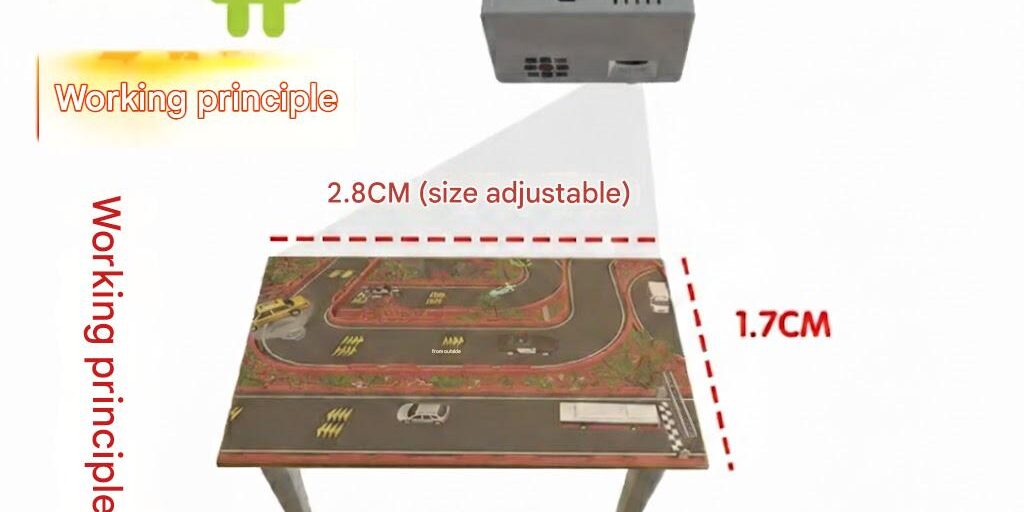
- Calculate the Throw Distance: Based on your projector’s throw ratio, calculate the exact ceiling height required to achieve your target floor image size (typically kept under 4 to 5 meters wide for a single projector to maintain high brightness and resolution).
- Secure and Align: Use a heavy-duty ceiling or wall mount to secure the projector. Adjust the physical pitch, roll, and yaw before relying on digital keystone correction. Ensure the projected image is a perfect, distortion-free rectangle on the floor.
Positioning the Host PC
- Place the control PC in a ceiling tray or a wall-mounted AV rack close to the projector. Keeping the PC close prevents signal degradation over long HDMI or USB cable runs.
- Route your HDMI cable from the PC to the projector, and run your USB or Ethernet cable to the designated LiDAR mounting spot. Ensure all cables are safely secured with zip ties or cable management raceways.
Step 3: Mounting the LiDAR Sensor
The position of the LiDAR sensor dictates how well your system will detect footsteps. There are two common mounting topologies:
- Ceiling Edge Mounting (Top-Down Angled): Mounted high up at the edge of the projection zone, angled slightly downward to blanket the floor.
- Wall Mounting (Low-Angle Sweep): Mounted on a side wall near the floor, parallel to the ground, allowing the laser plane to “slice” right above the projection surface.
Installation Best Practices:
- Mechanical Fixing: Use the provided base plate or a custom L-bracket. Secure it to the wall or ceiling using expansion screws. Use a laser level to ensure the bracket is perfectly straight before mounting the sensor.
- Clear the Line of Sight: Ensure the 270° or 360° scanning plane of the LiDAR is completely unobstructed. Keep it away from lighting fixtures, ceiling beams, or HVAC vents that could create blind spots.
- Angle and Coverage: The LiDAR’s scanning plane must completely encompass all four corners of the projected image. It is better to have the LiDAR scan slightly outside the projection zone, as you can easily crop out excess data in the software.
Step 4: Wiring and Power-On Testing
With the hardware mounted, it is time to connect the system and perform a baseline power test.
- Connect Power: Connect the LiDAR to its designated power source (Standard DC adapter or PoE, depending on your specific model). Verify the voltage requirements to avoid frying the sensor.
- Data Connection: Connect the LiDAR’s data cable (USB or LAN) to the Host PC. Note: If you are using an Ethernet-based LiDAR, ensure your PC’s IPv4 settings are configured to the same subnet as the LiDAR.
- The Smoke Test: Power on the projector, PC, and LiDAR.
- Verify the projector displays the PC desktop.
- Listen/look at the LiDAR: The internal motor should be spinning smoothly, and the status LED should indicate a normal connection.
- Open Windows Device Manager to ensure the PC recognizes the LiDAR hardware.
Step 5: Software Environment & Calibration Overview
While this is a hardware guide, your installation is not complete until the physical world is mapped to the digital software.
- Launch Interactive Software: Open your chosen interactive engine (e.g., LidarElf, Motioncube, or TouchDesigner) and connect to the LiDAR via its IP address or COM port.
- Define the Active Zone: Look at the raw point-cloud data on your screen. Use the software’s polygon/rectangle tools to mask out physical walls, walkways, or structural pillars so the system ignores them.
- 4-Point Calibration: This is the magic step. The software will project calibration points to the 4 corners of your floor projection. Have an assistant stand on each corner. In the software, drag the digital corners to match the exact coordinates of where the assistant is standing in the point-cloud data.
Step 6: On-Site Debugging and Optimization
To ensure a flawless user experience, perform these final quality checks:
- The Walk Test: Walk, run, and jump across the projection. Verify that the interactive effects trigger exactly under your feet without lagging or drifting. If the trigger point is offset, tweak your 4-point calibration.
- Environmental Troubleshooting: If you notice random “phantom” triggers when no one is on the floor, look for highly reflective baseboards, shiny metal chair legs, or direct sunlight hitting the sensor. Mask these areas out in your software.
- Stress Test: Leave the system running for a few hours. Ensure the PC has adequate ventilation and the LiDAR motor operates without overheating.
Need Custom Installation Specs?
Every venue is unique. If you are dealing with complex installations—such as massive floors requiring multiple blended projectors and stitched LiDARs, extremely high ceilings, or unique interactive software requirements—careful calculation of throw ratios and LiDAR intersections is required. Map out your room dimensions, ceiling heights, and hardware models beforehand to ensure a seamless integration.
You May Also Be Interested In: